 Every Voice
Screens and video
Put captions on a projector, a TV or a video stream with a link that you control from the studio.
A display is a private link that shows captions on a screen: full screen, as a lower third, as an overlay on video, or as a ticker. Create as many as you need on the Displays page. Displays come with the free trial and the Professional and Enterprise plans.
Styles
| Style | Looks like | Good for |
|---|---|---|
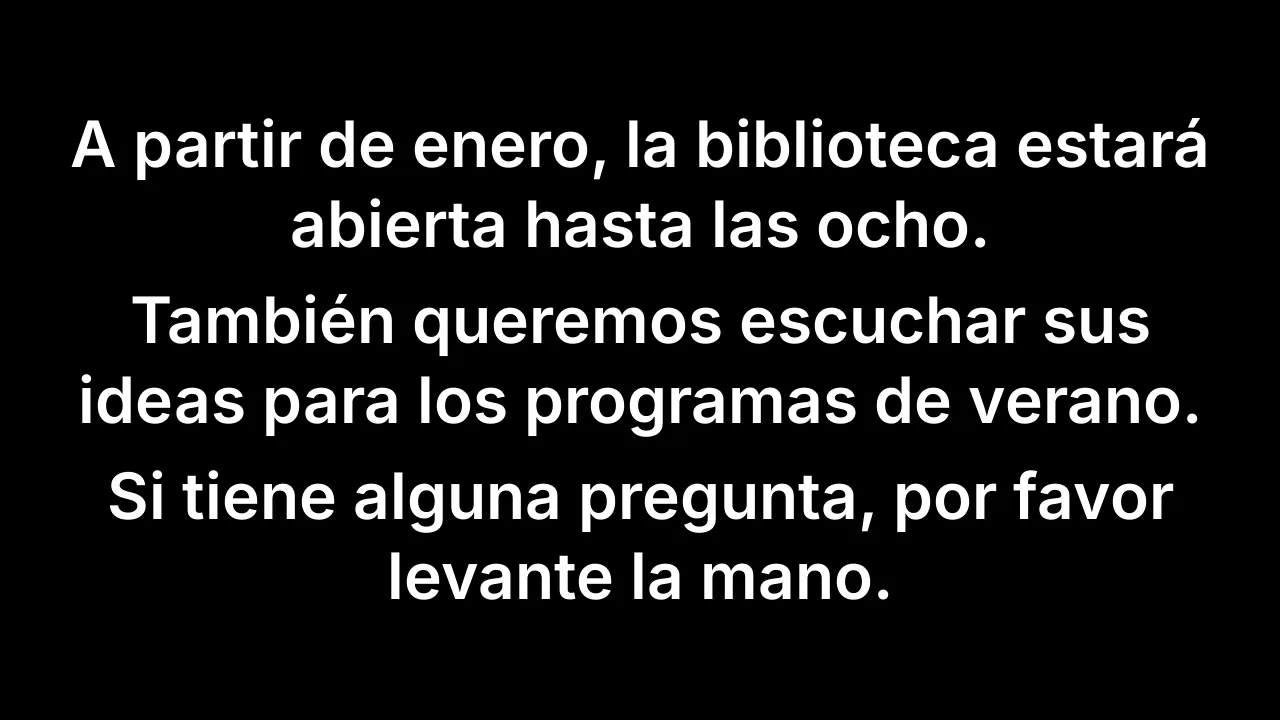
| Full screen | Large text filling the screen | Projectors and side monitors |
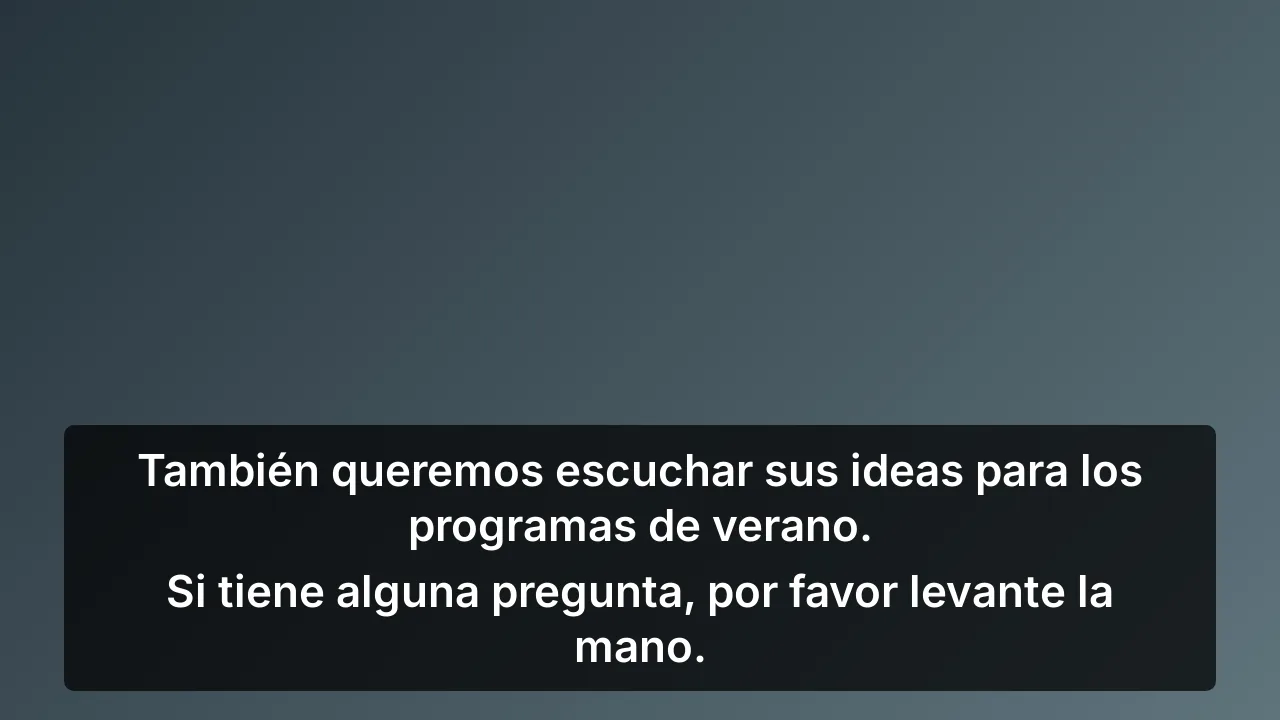
| Lower third | A band along the bottom | Video streams |
| Overlay | Text on a transparent background | Over slides or video |
| Ticker | One line that keeps moving | Wide, narrow screens |
Settings for each display
| Setting | Options |
|---|---|
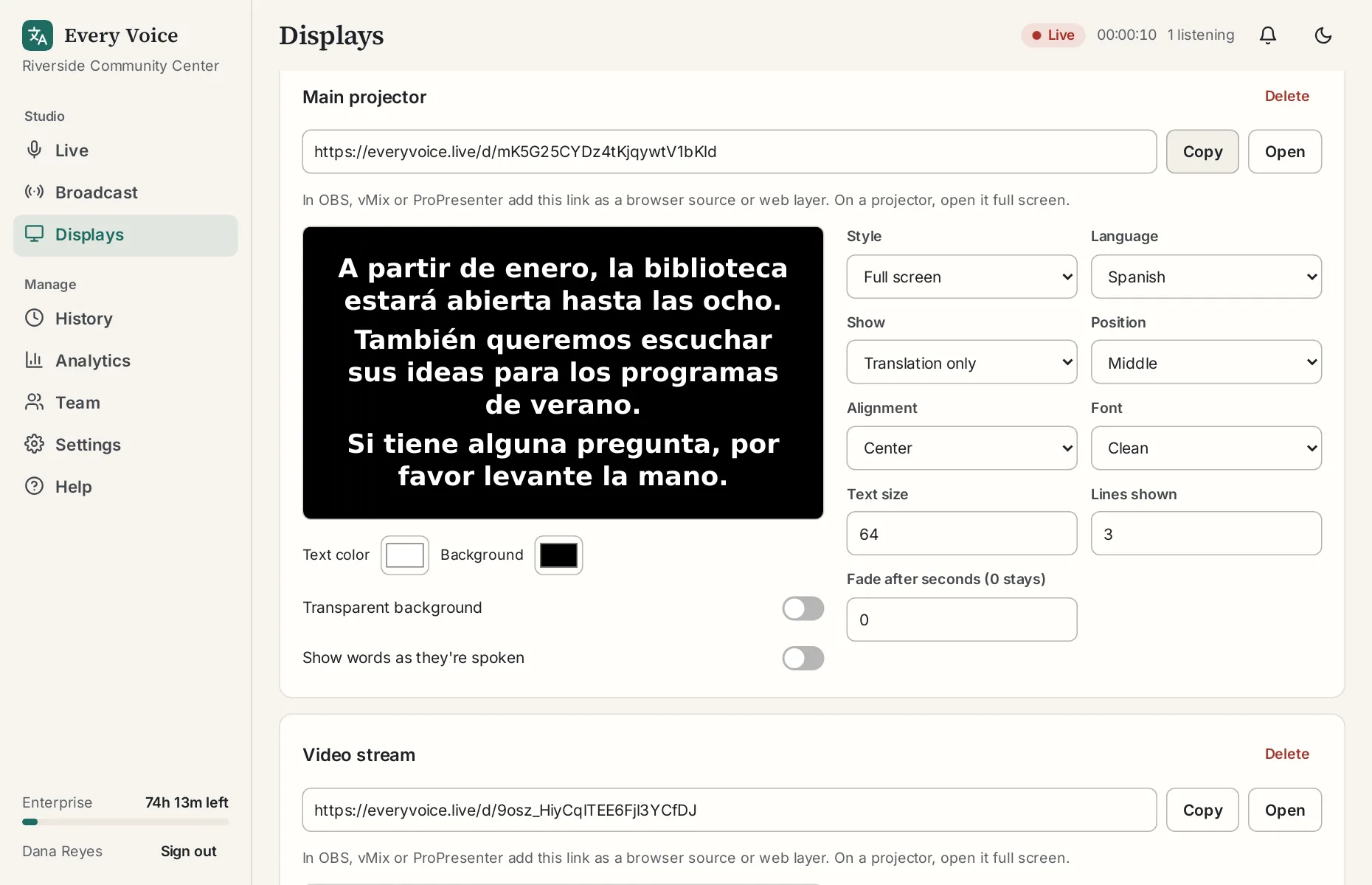
| Language | Any language you're offering, or the original |
| Show | Translation only, original only, or both |
| Position | Top, middle or bottom |
| Alignment | Left, center or right |
| Font | Clean, serif or monospace |
| Text size | 16 to 200 pixels, at a 1080p screen |
| Lines shown | 1 to 8 |
| Fade after seconds | 0 to 120. Zero means the text stays. |
| Colors | Text color, background color, or a transparent background |
| Show words as they're spoken | On or off |
| Campus | With several campuses, which campus the screen follows |
Changes appear on the screen right away, even during a session.
Showing it on a screen
- Projector or TV: open the link in a browser and press F11. See the projector tutorial.
- OBS: add a Browser source with the link, sized to your canvas. See the OBS tutorial.
- vMix: add a Web Browser input with the link.
- ProPresenter: add the link as a Web Page layer or a Stage web view.
Closed captions on YouTube
Displays put captions into the picture, so everyone sees them. To send closed captions that viewers can turn on and off, see Add closed captions to a YouTube live stream.
Keep links private
Treat each link as private. Anyone who has it can see that display. If one gets out, delete the display and make a new one.