 Every Voice
Sharing with your audience
Your link and QR code stay the same for every session, so you only have to set this up once.
Everything you need is on the Broadcast page in the studio.
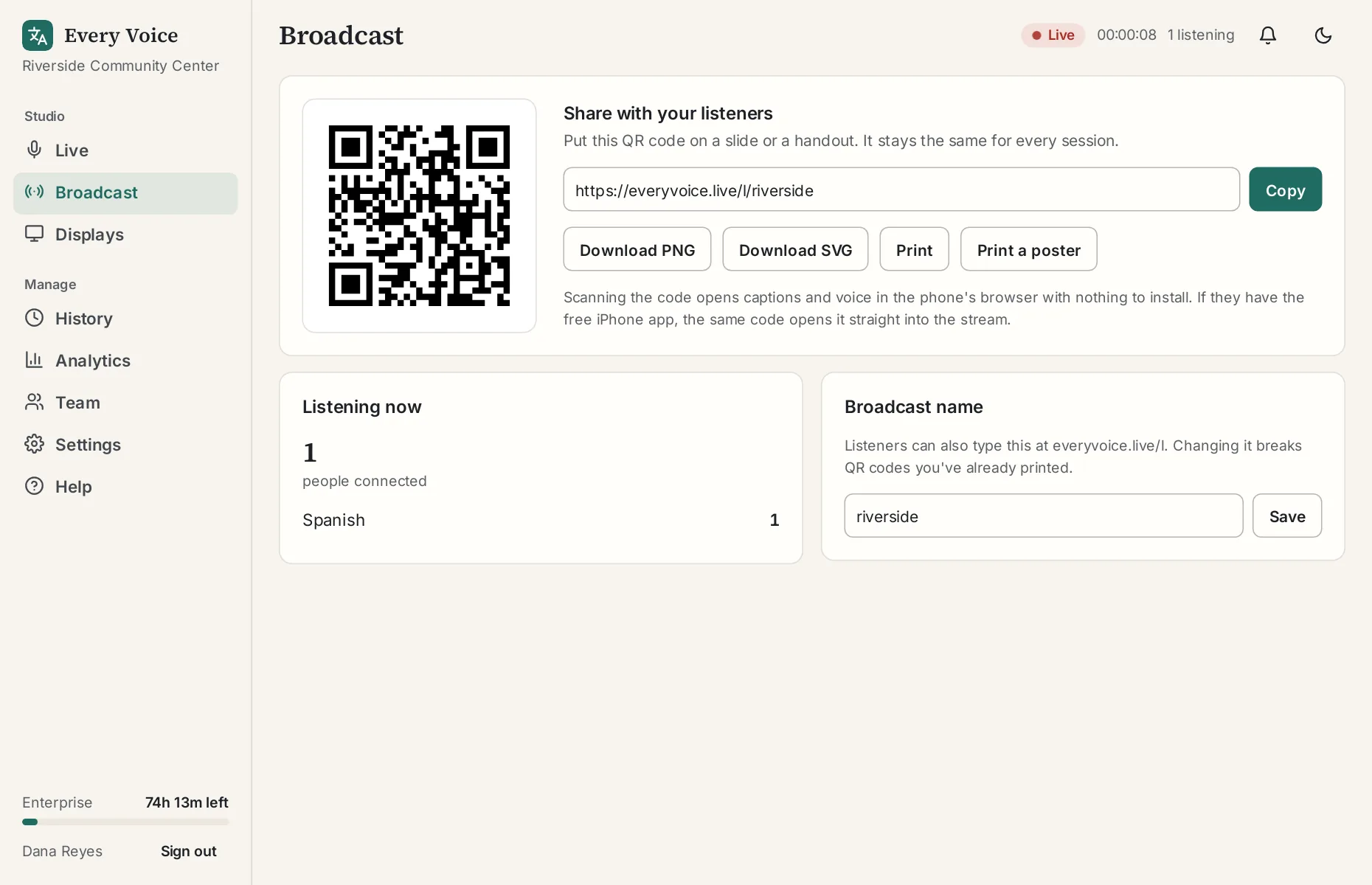
Your QR code
It always opens your broadcast, in every session. Download it as a PNG for slides or an SVG for print. Print a poster makes a ready-to-hang page.
Your link
It looks like everyvoice.live/l/your-name. People can also go to everyvoice.live/l and type your broadcast name, which is handy over the phone or when you read it aloud.
Where to put it
- On a slide before you start
- In the program or printed handout
- On a table sign by the entrance
- In the invitation email, so people can test it at home
The QR code tutorial has more ideas.
Telling people what to do
A short line works: "Scan this code to read or hear this in your language. Headphones recommended."
Several campuses
A church or school with more than one location can run a separate session at each one, at the same time. Each campus has its own listener link and QR code, its own screens and its own YouTube stream.
Add a campus
On the Broadcast page, an admin adds a campus under Campuses with a name and a short link name, such as north. That campus's link is everyvoice.live/l/your-name/north. Your first campus is the default one. Rename it to fit, for example "Downtown".
Run a session at a campus
Once there's more than one campus, the Live page asks which campus before you start. Different people on your team can each run a different campus at the same time. Co-pilots, taking over and viewers work within one campus.
Share each campus's link
Under Campus links on the Broadcast page, each campus has its own link, QR code and poster. Put each one up at its own campus. It always opens that campus.
Your plain link and QR code still work. They open the default campus while it's the only one live, or when nothing is. When another campus is live, people first see a short list and choose their campus. QR codes you've already printed keep working.
Screens, YouTube and access codes
- Each display follows one campus. Choose it on the Displays page.
- YouTube captions are set up per campus, since each campus streams on its own. Pick the campus on the Live page first.
- An access code, if you turn one on, covers every campus.
Plans and hours
Your plan sets how many campuses can be live at once: one on the free trial and Basic, three on Professional and eight on Enterprise. You can set up as many campuses as you like. Each live campus counts its own time, so two campuses live for an hour use two hours.
Private meetings
Without a code, anyone with your link can follow along while a session is running. For a meeting that should stay in the room, turn on an access code.
Turn on an access code
On the Broadcast page, an admin turns on Require an access code. You get a six-character code that's easy to read aloud, with no letters that look like numbers. It works on every plan, including the free trial.
From then on, listeners type the code before they can read or hear anything. Each phone remembers it for your broadcast, so people coming back next time aren't asked again.
Share the code
While the code is on, your link and QR code carry it, so scanning still joins in one step. The code is also shown on the Broadcast page and on the poster, so you can read it out for anyone who types the link.
QR codes printed before you turned the code on still open your broadcast. They just ask for the code first.
Change the code
Type your own code of 6 to 12 letters and numbers, or press Make a new code. Changing it ends access for everyone using the old one. Anyone listening is asked for the new code, and links, QR codes and posters with the old code ask for it too. Print new ones after a change.
Everyone on your team can see the code. Only admins can turn it on or off or change it.
What still works without the code
- Displays keep working, because each one has its own private link.
- Shared transcripts stay open to anyone you send the link to.
- People signed in to your studio can open the listener page without typing the code.
The transcript is still saved, as it is for every session. You can delete it afterward, or have old sessions deleted automatically.