 Every Voice
Following a broadcast
How listeners join, choose a language, turn on the voice and adjust the captions.
If someone sent you here because you're at an event, this page is for you. You don't need an account or an app.
Join
Scan the QR code with your phone's camera and tap the link. If you don't have a code, go to everyvoice.live/l and type the broadcast name the organizer gave you.
Some broadcasts are private and ask for an access code first. Type the code the organizer gives you. Your phone remembers it, so you won't be asked again next time.
Choose your language
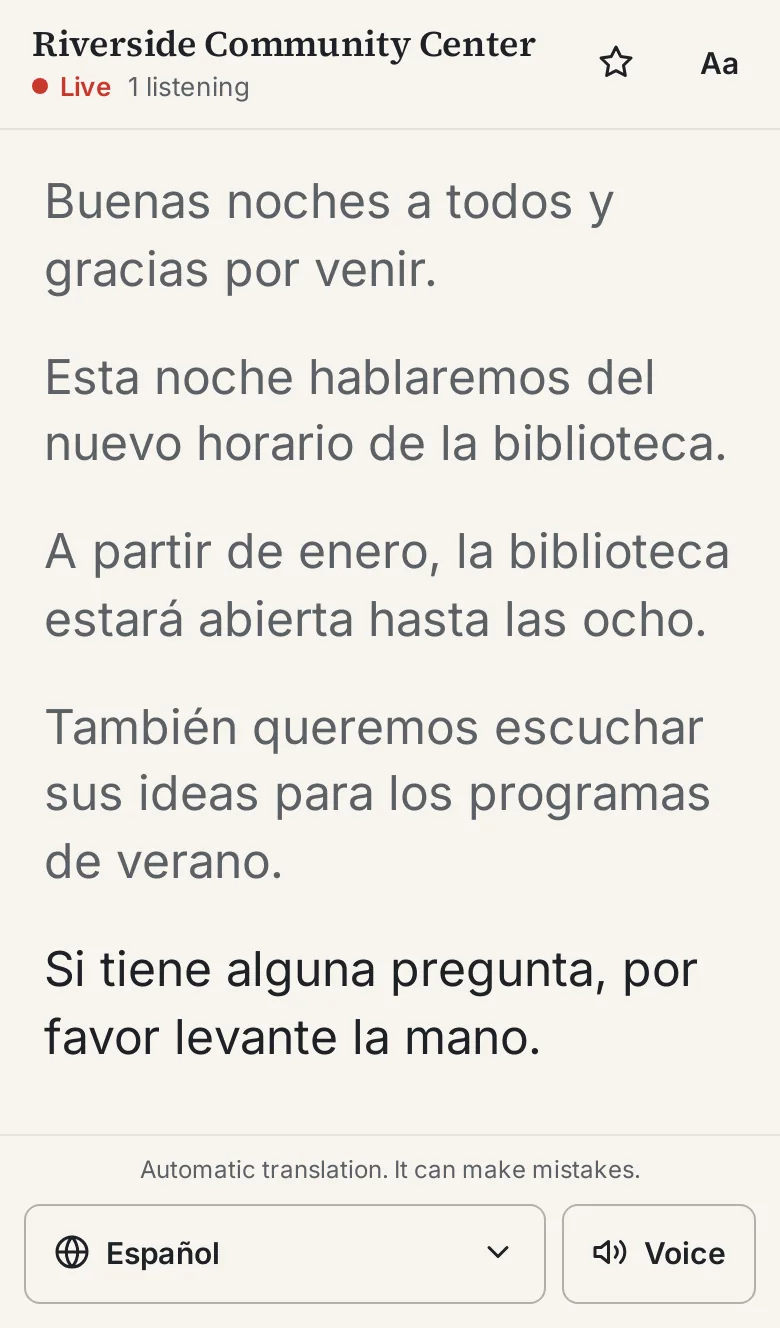
Tap the language button at the bottom of the page and pick the one you want. The captions switch right away. If the broadcast hasn't started yet, the page waits and starts on its own when it does.
Hear it spoken
Tap Voice to hear the translation through your phone. Headphones are a good idea if you're in a room with other people.
Voice is available in 40 of our 60 languages. If you're reading the original language, or a language that doesn't have a voice yet, the button tells you why it can't play. Captions keep working either way. The full list shows which languages have voices.
Make it easier to read
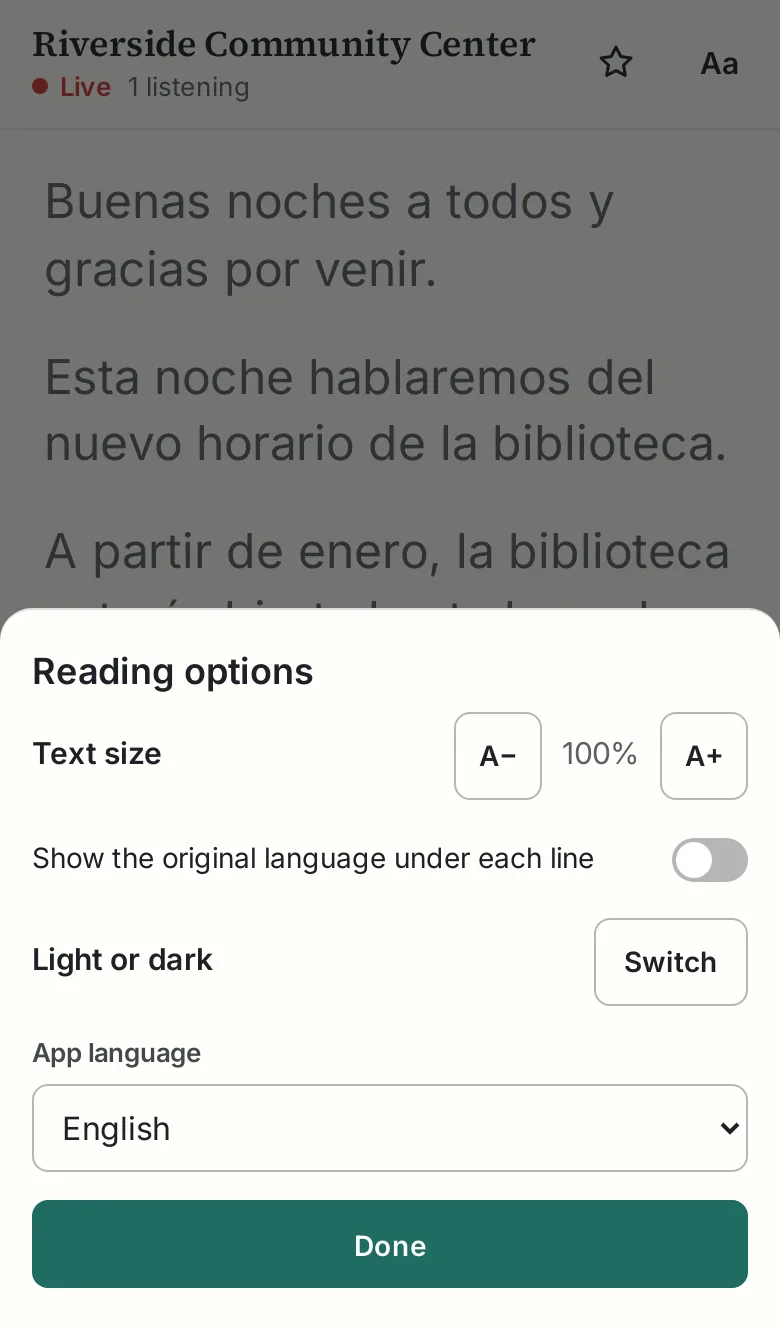
Tap Aa to open the reading options:
- Make the text larger or smaller.
- Show the original language under each line.
- Switch between light and dark.
- Change the language of the buttons and menus.
If you scroll up to reread something, the captions stop moving so you don't lose your place. Tap Jump to latest to go back to the live line.
Save a broadcast you come back to
Tap the star at the top to save it. It'll be listed under Favorites the next time you open everyvoice.live/l. Favorites stay on your device.
If something isn't working
See Troubleshooting, or ask the people running the event.