 Every Voice
Names and special words
Teach Every Voice the names and terms it wouldn't otherwise know.
Names of people and places, acronyms and specialist terms are the most common things to go wrong. A few minutes here can fix most of them.
Adding a word
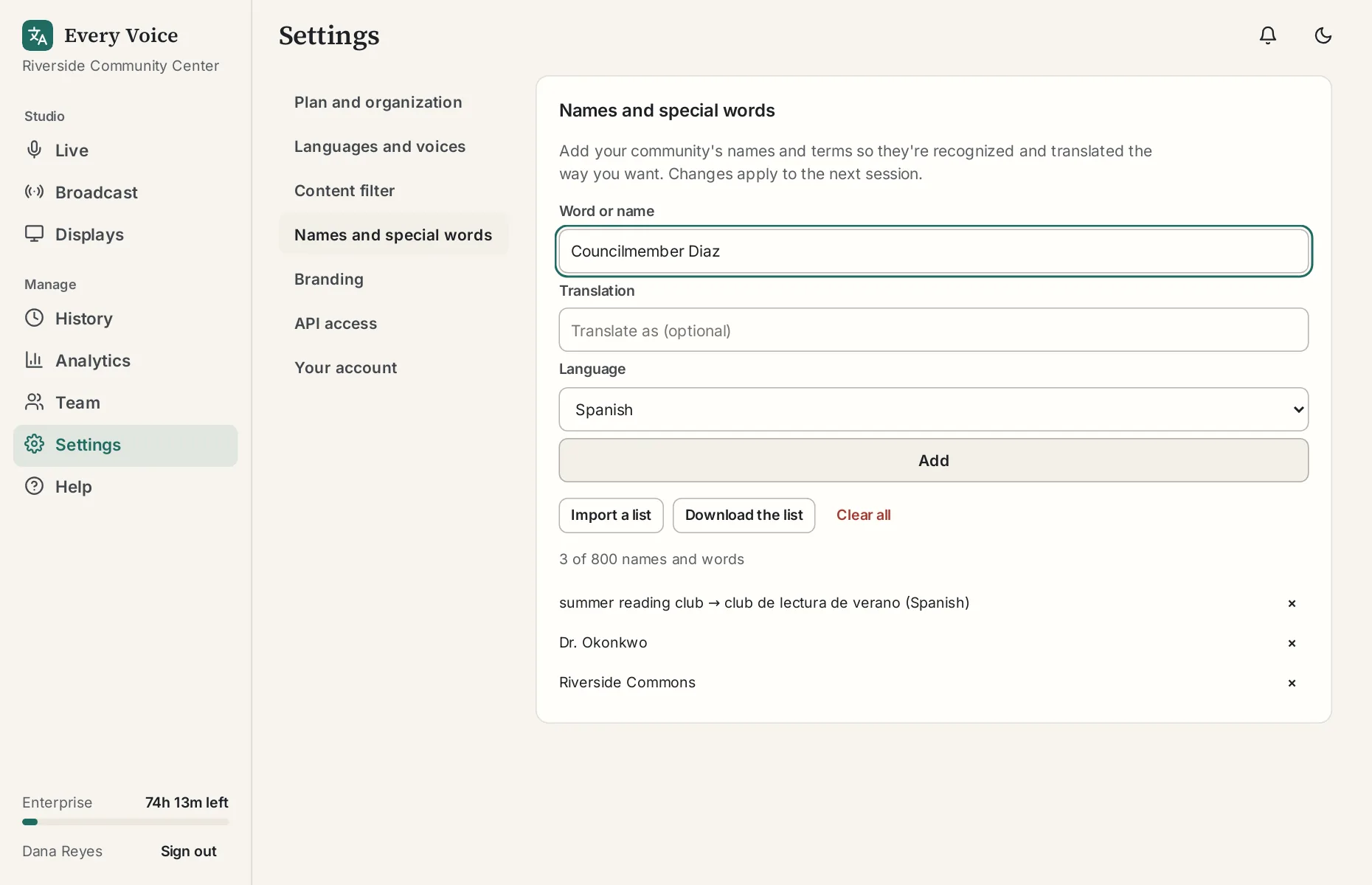
Go to Settings, Names and special words.
- Under Word or name, type it the way it should appear, such as "Dr. Okonkwo".
- To control how it's translated, fill in Translation and choose the Language. Leave these blank if the word should stay as it is.
- Press Add.
Changes apply to your next session, so add them beforehand.
Importing a list
If you have more than a handful, such as a staff list, your buildings or your product names, add them all at once.
- Press Import a list.
- Paste the list, or choose a file. The file can be a spreadsheet saved as CSV, or a plain text file.
- Press Check the list. You'll see how many will be added, how many are skipped, and any that can't be added and why. Nothing is saved yet.
- Press Add to add them all.
Put one word or name on each line. To control how a word is translated, give it three columns: the word or name, its translation, and the language. Leave the last two empty for a word that should stay as it is. The first row can be a heading row, like the one below.
A list saved from a spreadsheet looks like this:
term,translation,language
Pastor Ivan Petrov,Пастор Иван Петров,ru
Grace Chapel,,
"Smith, John",,
Brother,Hermano,es
- Columns can be separated by commas, semicolons or tabs. Excel uses semicolons in much of Europe, and that works too.
- A name with a comma in it goes in double quotes, like "Smith, John". Spreadsheets do this for you.
- The language can be a short code such as ru or es, or its name, such as Russian or Spanish. If you leave it empty, the translation is used for every language.
- A word that's already in the list is skipped, even if the capital letters differ. So is a word that appears twice in the same list, unless it's for a different language.
- A word or a translation can be up to 120 characters.
Downloading the list
Download the list saves everything as a spreadsheet file with the same three columns. It opens in Excel, Google Sheets and Numbers, and you can import it again later or into another organization.
To change many entries at once, download the list, edit it, press Clear all, and import the edited file. An import skips words that are already in the list, so it won't replace a translation on its own.
Clearing the list
Admins and owners can remove everything at once with Clear all. You'll be asked to confirm first. Download the list beforehand if you might want it back.
How many you can add
The list holds up to 800 names and words. A session can take a few hundred of them, and fewer when they have translations, because the speech service limits how much it reads before a session starts. If your list is longer than that, sessions use the ones you added first, and the rest are marked Not used. Keep the list to the names people actually say.
What's worth adding
- Names of the people who speak most often
- Your organization, its programs and buildings
- Local place names
- Acronyms, written the way you want them to appear
- Terms that have a particular translation in your field
The tutorial shows how to find what's missing by reading an old transcript.