 Every Voice
Add captions to a video stream with OBS
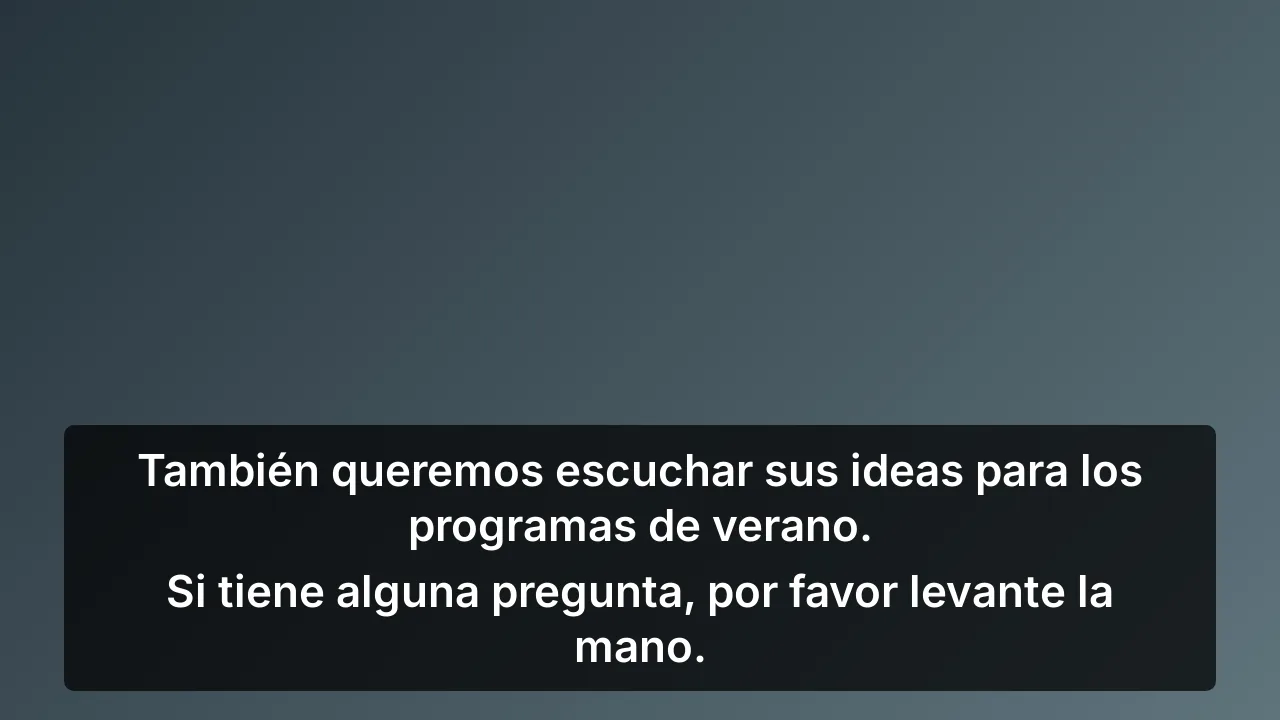
Put live captions over your stream as a browser source.
Create a display
Go to Displays in the studio. Name it "Stream", choose Lower third and press Add. Turn on Transparent background.
Copy the link
Press the copy button next to the display link.
Add a Browser source in OBS
In OBS, press the plus button under Sources and choose Browser. Paste the link into URL. Set the width and height to match your canvas, usually 1920 by 1080.
Put it on top
Drag the source to the top of the list so it sits over your video.
Adjust from the studio
Set the text size, lines and position in the studio. Changes reach OBS right away, so there's no need to reload the source.
Check for a delay
Captions show up a moment after the words are spoken. If your stream has a built-in delay, it often works out in your favor, since the captions have time to catch up.
For several languages, make one display per language and put each in its own scene or its own output.