 Every Voice
The studio
A tour of the studio, what each page is for, and what you can change while a session is running.
The studio is the control room for your broadcasts. Sign in at everyvoice.live/app in Chrome or Edge.
Pages in the studio
| Page | What it's for |
|---|---|
| Live | Set up and run a session |
| Broadcast | Your QR code, listener link and poster |
| Displays | Links for projectors, TVs and video overlays |
| History | Past sessions and transcripts |
| Analytics | Who listened and how it went |
| Team | Invite people and set what they can do |
| Settings | Your organization, voices, word lists and branding |
Starting a session
On the Live page, work down the panels: Audio source, Languages, Voice and, if you need them, More options. Give the session a name if you'd like. Press Start session when you're ready.
Your choices are remembered for next time. To set the starting point for everyone in your organization, use Studio defaults in Settings.
While a session is running
The running transcript fills the middle of the page. Above it you'll see how long you've been running and how many people are connected.
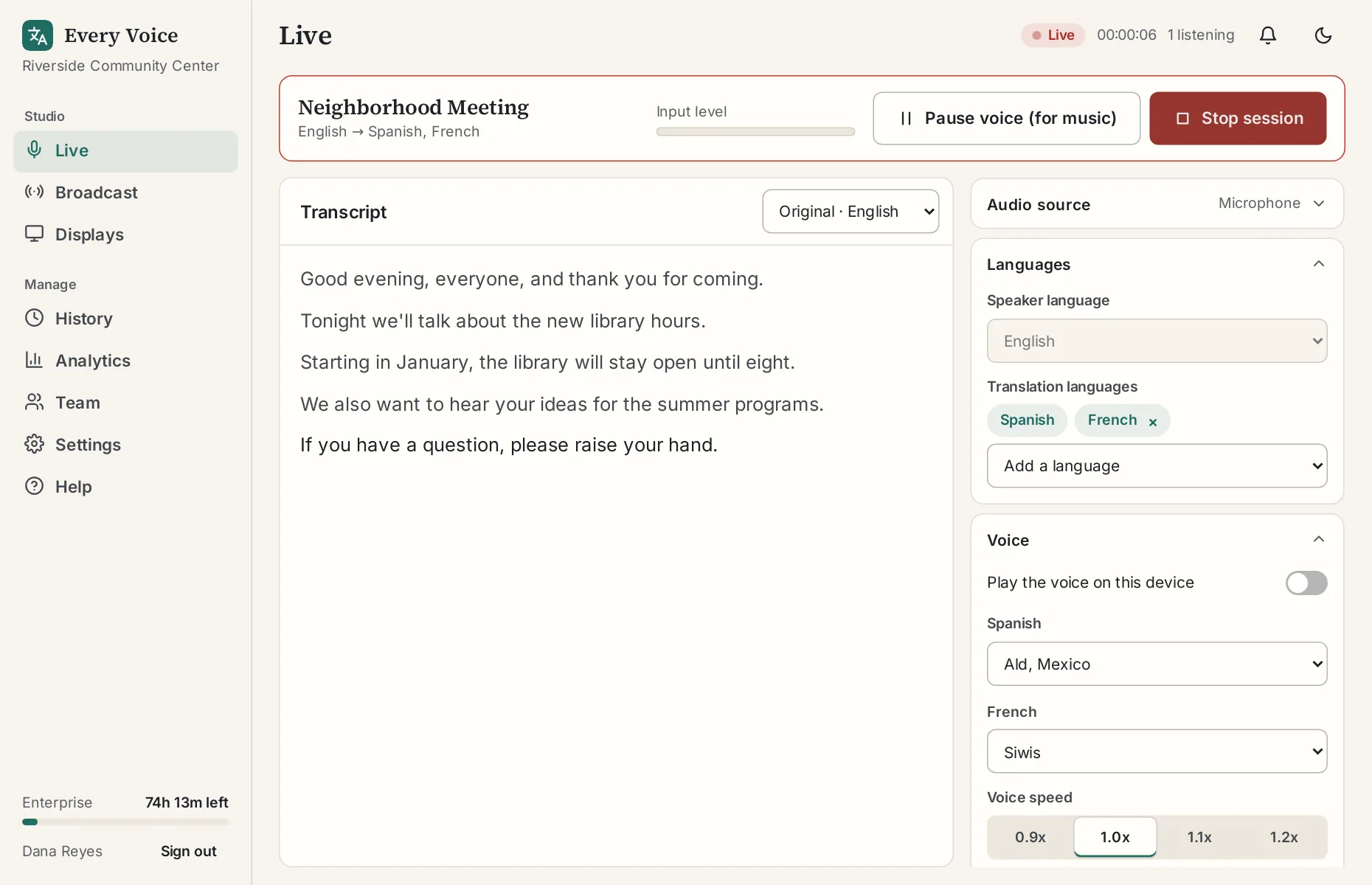
You can do all of this without stopping:
- Add or remove translation languages.
- Change voices, voice speed and translation timing.
- Press Pause voice during music. Captions continue and the voice stays quiet until you press Resume voice.
- Turn on Play the voice on this device to hear what listeners are hearing.
Your audio source and speaker language are set when the session starts. To change those, stop and start again.
Warnings you might see
| What you'll see | What it means |
|---|---|
| No audio warning | Nothing has come through for 25 seconds. Check the mic and your cable. |
| Are you still streaming? | There's been no speech for an hour. Answer within 5 minutes or the session stops so it doesn't use up your hours. On a free trial this check comes after 10 minutes. |
| Hours used | You'll be told at 80% and again at 100% of your monthly hours. |
If your computer drops off
Listeners stay connected for 2 minutes while you get back. Open the studio again and press Resume session. Anyone else on your team can press Take over from their own computer. See Add a co-pilot.
Ending a session
Press Stop session. The transcript goes to History right away. If the session ran for 5 minutes or more, owners and admins get a recap by email, unless you've turned that off in Settings.