 Every Voice
Livestreams and online events
Put captions on your stream, send closed captions to YouTube, and let people watching from home follow in their own language.
A lot of events now have a second audience watching online: a Sunday service, a webinar, a conference keynote, a weekly show on YouTube. Every Voice works with the stream you already run, and you don't have to change how you produce it.
Captions over your video
Make a display in the studio and add its link to your streaming software. In OBS it's a Browser source, in vMix a Web Browser input, and in ProPresenter a Web Page layer. Choose a lower third or an overlay, turn on a transparent background, and the captions sit over your video for everyone watching, on any platform.
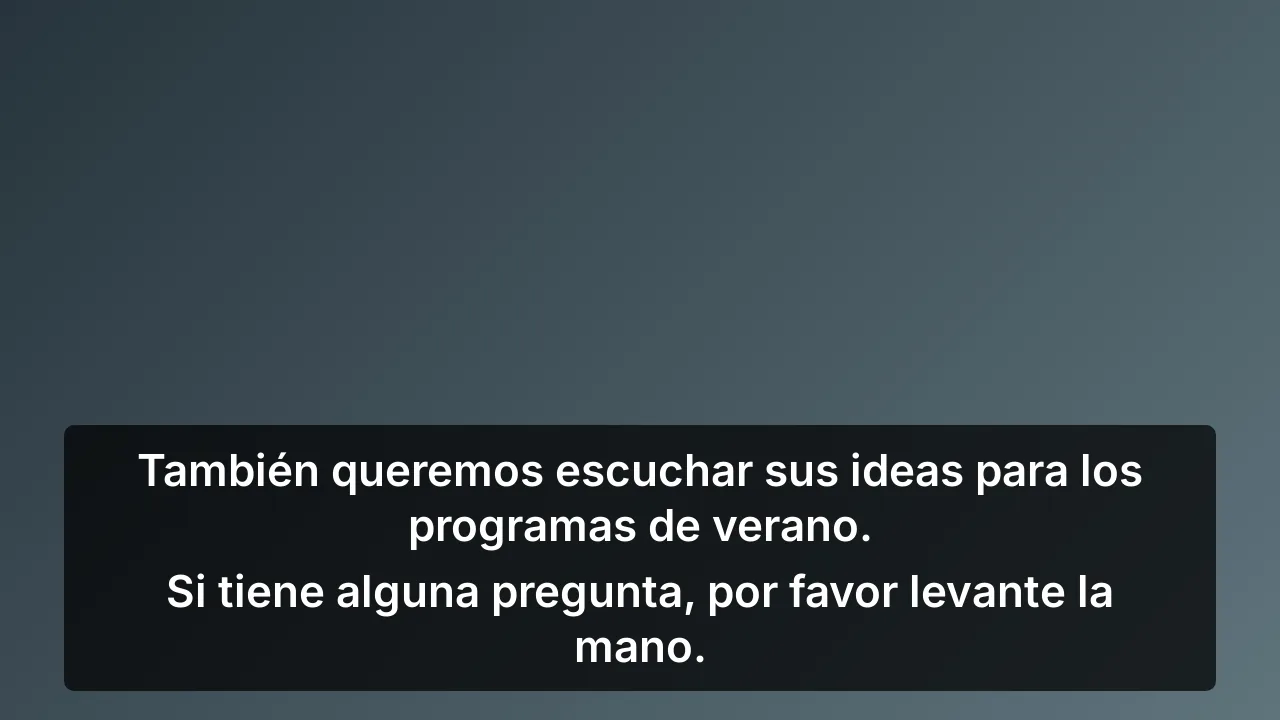
Text size, colors and position are set in the studio, and changes reach the stream right away. For more than one language, make a display for each and put them in separate scenes. The OBS tutorial walks through it.
Closed captions on YouTube
Every Voice can send captions straight to a YouTube live stream. Viewers turn them on with the CC button, so people who don't need them don't see them. You paste the caption URL from YouTube Studio once, then choose the language for each stream. YouTube takes one caption language per stream. See Add closed captions to a YouTube live stream.
Every viewer picks a language
Put your listener link in the video description, in the chat or on your website. People watching from home open it on their phone, or in another tab on their computer, and choose a language. They can read the captions, and in 40 languages they can listen to the translation too. Nobody needs an app or an account.
This is how you offer several languages to one online audience, because each person chooses their own. Your plan sets how many translation languages you can offer at once.
Getting the sound in
Give the studio computer a feed from your sound board. A mix with only the speech microphones works best, because music in the feed can come out as nonsense captions. See Audio setup.
If the talk itself is online, such as a webinar or a video call, open it in a browser tab on the studio computer and choose System audio. See Translate a video or online meeting.
After the stream
Every session is saved with the original and each translation. Download SRT or VTT subtitles in the language you want and add them to the recording. See Add subtitles to a recording.
Good to know
- Captions over your video and YouTube closed captions come with the free trial and the Professional and Enterprise plans.
- A stream reaches viewers some seconds after it happens, and longer with the delay YouTube needs for captions. Your listener link is closer to live, so people at home will see the translation a little before the picture.
- Anyone with your link can follow while a session is running. For a private stream, turn on an access code.